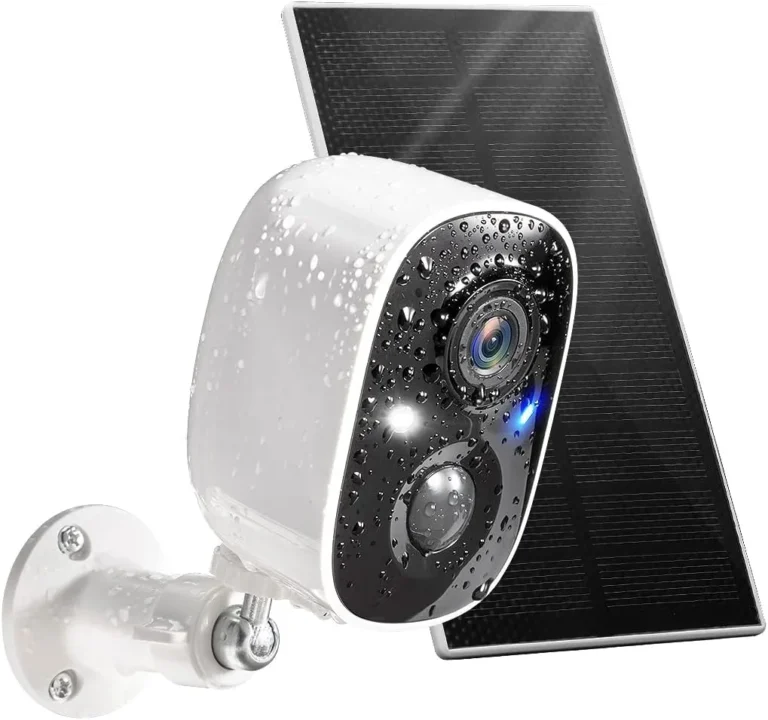
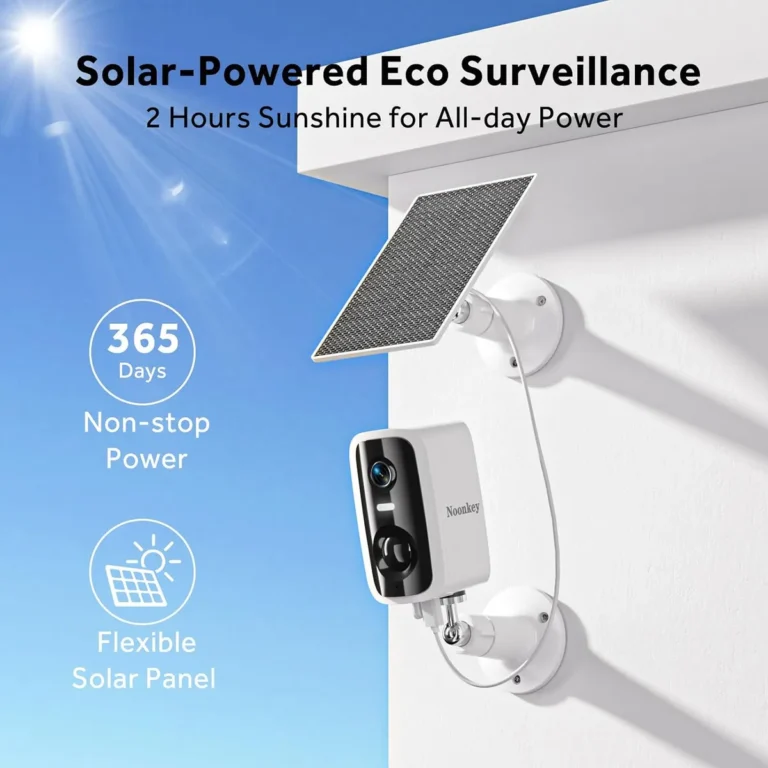
Why Is My Solar Security Camera Not Recording?
Why is my solar security camera not recording? The answer usually comes down to three things: power, storage, or detection settings. The camera might look perfectly fine from the outside.
It's on, it connects to your Wi-Fi, and the app opens without issues. But when you check recordings, nothing shows up.
Most solar security cameras need between 2W and 5W of consistent solar input to keep their lithium-ion batteries charged. When charging drops below that threshold, the camera shifts into power-saving mode. Recording stops.
You don't get a warning.
Quick Answer
Your solar security camera likely stopped recording for one of three reasons. The battery is dead because solar charging failed. The SD card is full or corrupted.
Motion detection settings changed. Check your app's battery level first, then inspect the SD card.
The Problem: Your Solar Security Camera Just Stopped Recording
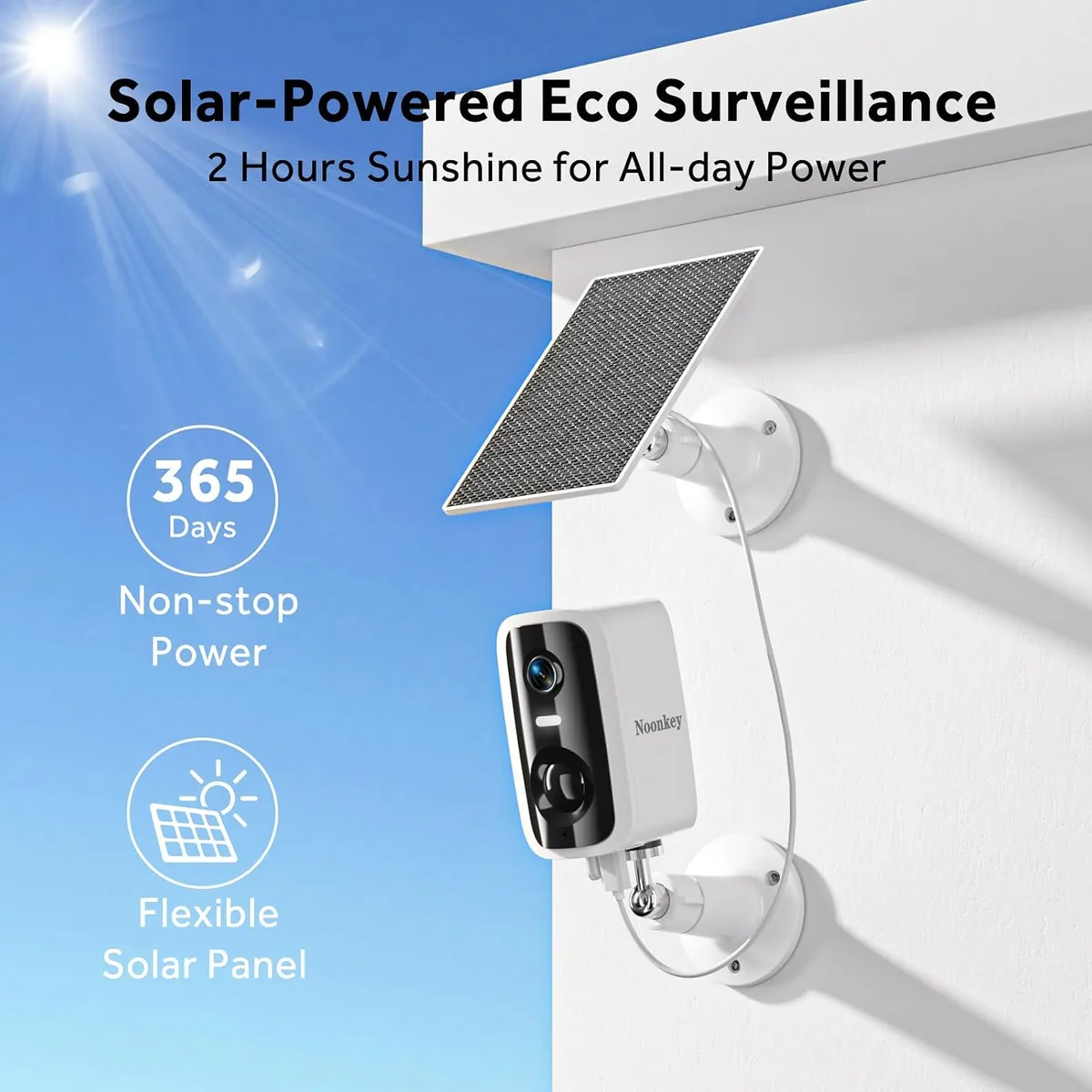
Image source: Bing (Web (fair-use with source credit))
You chose a solar security camera for its promise of hassle-free recording. No monthly power bills. No complex wiring through walls.
For the first few months, it worked exactly as advertised.
Aggregate user reviews from Reolink, Ring, and Eufy tell the same story. Owners report cameras that suddenly stop recording motion events entirely. Some find blank cloud storage after a week of missed events.
Others see live view working perfectly but get zero saved clips.
This isn't one single problem. It's several problems wearing the same disguise. Solar security cameras depend on three separate systems working at the same time.
When any one of them drops out, recording stops dead. The camera doesn't always warn you before that happens.
Support threads from major solar camera brands reveal a familiar pattern. A camera installed on a sunny wall works great through spring and summer. Then winter arrives, the sun angle drops, and recording quietly disappears.
Or a firmware update rolls out and changes a setting you never touched.
The Three Things Every Solar Camera Needs to Record
Every solar security camera needs three things to work: power, storage, and detection. Miss any one of them and recording stops completely. Here's how each failure looks.
Power
Your camera runs on a rechargeable lithium-ion battery, typically 5,000 to 20,000 mAh depending on the model. That battery needs constant solar input to stay charged. Data from the National Renewable Energy Laboratory confirms that solar panel output depends heavily on angle, shading, and weather conditions.
If the panel doesn't get enough sun, the battery drains. When it hits empty, the camera shuts off completely or enters deep sleep.
Storage
Most solar cameras record to a microSD card, a cloud service, or both. If your SD card is full, corrupted, or formatted wrong, the camera has nowhere to save clips. Cloud storage works differently.
If your subscription expired, the camera may stop recording to cloud even though it looks like it should be working.
Detection
Motion detection is what tells your camera to wake up and record. If sensitivity is set too low, or if the PIR sensor is blocked by dirt or cobwebs, the camera simply never triggers. It sits there powered on, connected, and completely oblivious to motion in front of it.
Each system fails independently. Each failure looks different in the app. Knowing which one is broken is half the fix.
| System | What Happens When It Fails | Common Trigger |
|---|---|---|
| Power | Camera won't wake up or records briefly then dies | Dead battery, bad solar angle |
| Storage | Clips can't save to SD or cloud | Full SD card, expired cloud plan |
| Detection | Camera stays powered on but never triggers | Low sensitivity, blocked PIR sensor |
How Solar Security Cameras Actually Record and Where It Breaks Down
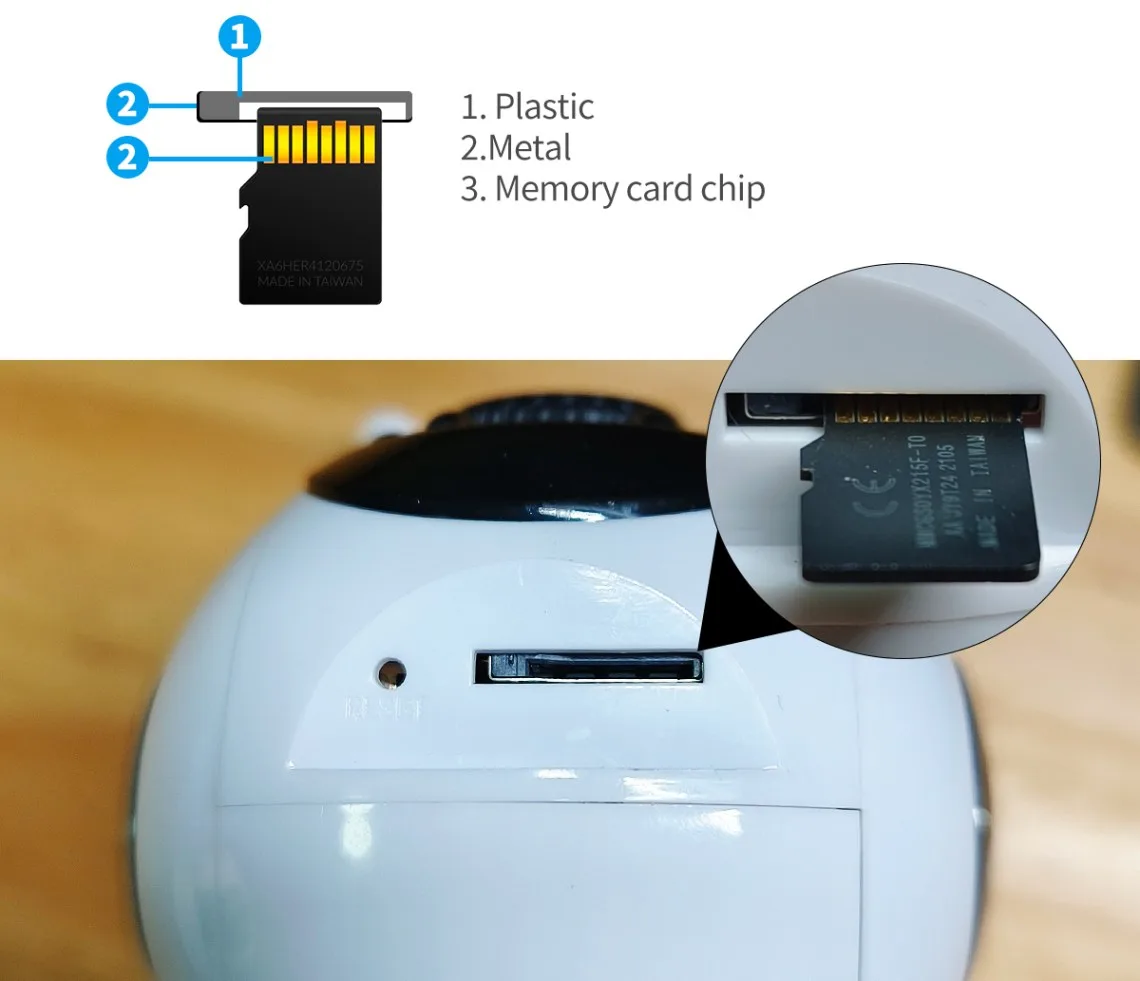
Image source: Bing (Web (fair-use with source credit))
Understanding the recording chain helps you pinpoint exactly where things go wrong. Every solar security camera follows the same basic sequence, and every step can fail.
Here's the process:
- A PIR sensor detects motion, typically 26 to 40 feet away
- The sensor triggers the camera to wake from standby
- The camera begins recording video, usually at 1080p or 2K
- The video file saves to the microSD card and/or uploads to cloud storage
- The app sends a notification to your phone with a clip
Each step in that chain has a failure point. If the PIR sensor doesn't detect motion, the chain never starts. If the camera wakes but the battery is dead, step three fails immediately.
If the recording saves to SD but can't upload to the cloud due to weak Wi-Fi, step five fails silently.
Modern solar cameras use motion-triggered recording by default to save battery. They only record when something moves in front of the PIR sensor. If your sensitivity is too low, or your detection zones are too narrow, the camera might be "working" in every sense except the one that matters.
Most major solar camera brands now include app-based diagnostics. These show battery health, Wi-Fi signal strength, and SD card status right in the app. If your app doesn't show these readings, check for a firmware update.
Solar Camera Not Recording: A Step-by-Step Diagnostic Guide
Work through these steps in order. Each one eliminates a possible cause. Stop when you find the problem.
Check Power First
Open the app and check the battery charge. If it's below 20%, the camera is power-limited. If it's at 0%, the solar panel isn't generating enough charge.
Make sure it's clean, properly angled, and not shaded by trees or overhangs.
Inspect the SD Card
Check SD card status in the app. A "full" card needs formatting or replacement. A "corrupted" card should be formatted in the camera itself, not on your computer.
Use Class 10 cards for 32GB or less. Cards rated U3 or A2 handle higher resolutions better.
Verify Motion Detection
Check that motion detection is enabled and sensitivity is medium or higher. Walk through the detection range and watch for a trigger. If nothing happens, clear obstructions from the PIR sensor or reposition the camera to reduce blind spots.
Check Wi-Fi Signal
Weak Wi-Fi can block cloud uploads and even prevent local saving in some models. Stand near the camera and check signal strength in the app. If it's below -65 dBm, move the router closer or add an extender.
Check Your Cloud Subscription
Verify your cloud plan hasn't expired. Many cameras show motion event notifications in the app even after the plan lapses. The notification appears but the clip never saves.
Check the subscription status page in your brand's app.
Update Firmware, Reset if Needed
Check for firmware and app updates first. As of 2026, firmware updates regularly fix recording bugs and improve motion detection accuracy. If nothing else works, try a factory reset.
Hold the button 10 to 15 seconds until the LED changes color.
Mistakes That Make Solar Camera Recording Problems Worse
Some fixes feel logical but actually make things worse. Here are the most common traps to avoid.
Resetting the camera without checking the app first. Many solar cameras store motion detection zones, sensitivity settings, and recording preferences in the app. A factory reset wipes those settings. Always check the app before you reset.
Using a low-quality SD card. Cheap microSD cards fail faster under constant write operations. They often have slow write speeds that can't keep up with 2K or 4K recording. Use Class 10 or A2-rated cards from brands like Samsung or SanDisk.
Leaving the solar panel at the wrong angle. In the Northern Hemisphere, solar panels should face south at a tilt roughly equal to your latitude. A flat-mounted panel loses 10 to 30 percent of its output compared to a properly angled one.
Ignoring cold weather effects. Lithium-ion batteries lose 10 to 20 percent of their capacity when temperatures drop below 32°F (0°C). In cold climates, the battery may drain faster than the panel can recharge it.
Throwing out old batteries instead of recycling them. Per the EPA, lithium-ion batteries should never go in regular trash. They can cause fires in waste facilities. Bring them to a recycling center or a retail drop-off point.
Letting the SD card fill up without formatting it. Once the card hits 100 percent capacity, the camera usually deletes the oldest clips automatically. But if auto-delete is off, the camera simply stops recording altogether.
How to Keep Your Solar Security Camera Recording Year-Round
Fixing a recording problem is one thing. Keeping the camera working year-round is another. The same seasonal and environmental factors that cause a camera to stop recording will eventually come back.
Here's what keeps solar security cameras running reliably across all four seasons.
Position for Maximum Sun Exposure
Solar panels lose significant output when shaded. Trees, roof overhangs, and even dirt can block enough light to stop charging. Clean the panel monthly in dusty environments.
Angle it south-facing in the Northern Hemisphere, tilted roughly equal to your latitude.
Maintain the SD Card on Schedule
Format microSD cards every 6 to 12 months, even if they don't look full. Cards degrade under constant write cycles. A Class 10 card from a known brand lasts longer than generic options.
Check Your Cloud Subscription
If you rely on cloud recording, verify your plan before it lapses. Many brands don't notify you when a subscription expires. The camera keeps working locally but stops saving to the cloud without warning.
Monitor Battery Health Over Time
Lithium-ion batteries degrade after 2 to 3 years of solar cycling. If your app shows the battery charging slowly or draining faster than before, replacement is likely needed. Replacement batteries typically cost $30 to $80 depending on the model.
Keep the Firmware Updated
Camera manufacturers push firmware updates to fix recording bugs, improve motion detection, and patch security issues. Enable auto-update in the app if available. A missed firmware update is one of the most common causes of silent recording failures.
| Season | Main Risk | What to Do |
|---|---|---|
| Spring | Rain and pollen on panels | Clean panels monthly |
| Summer | Heat degrading battery performance | Avoid unshaded mounting without ventilation |
| Autumn | Leaves blocking panels | Trim branches, clean panels regularly |
| Winter | Short daylight, cold battery | Angle panels for low winter sun |
Frequently Asked Questions
Why is my solar security camera recording but not sending alerts?
Check your notification settings in the app first. Then verify your Wi-Fi signal at the camera location. A signal below -65 dBm often prevents the camera from uploading clips and triggering alerts, even when local recording works fine.
Can a solar security camera work on a cloudy day?
Yes, but with reduced performance. Solar panels still generate power in overcast conditions, typically at 10 to 25 percent of their peak output. The battery buffer usually covers a day or two of cloudiness before the camera enters power-saving mode.
How long does a fully charged solar security camera last without sun?
Most modern solar cameras run 3 to 6 months on a full battery without any solar input. Performance drops in cold weather, where lithium-ion batteries can lose 10 to 20 percent of their usable capacity below 32°F (0°C).
Is it normal for a solar security camera to record only at night?
If the camera records at night but not during the day, your motion detection sensitivity may be set too high for daytime conditions. Bright sunlight can mask motion triggers. Lower the sensitivity or narrow the detection zones to fix this.
Do I need a specific microSD card for my solar security camera?
Use a Class 10 card from a reputable brand like Samsung or SanDisk. Check your camera's manual for the maximum supported capacity, which varies by model. Cards rated U3 or A2 perform best for 2K and 4K recording resolutions.
Should I reset my solar camera before replacing parts?
Always check your app settings before resetting. A factory reset wipes motion detection zones, sensitivity preferences, and cloud configurations. Run through the diagnostic steps above first.
Reset only as a last resort.
When to Fix It Yourself vs. Replace the Camera or Call Support
Not every recording problem needs a new camera. Most issues come down to settings, storage, or power supply. But some problems signal hardware failure you can't fix from the app.
Fix it yourself when: the problem is a full SD card, low battery, weak Wi-Fi, outdated firmware, or a changed setting. These are the most common causes, and each one has a straightforward solution.
Contact manufacturer support when: the camera shows power but won't trigger motion detection after firmware updates. Or the solar panel shows correct voltage but the battery won't charge at all. These point to internal hardware issues.
Replace the camera when: the battery won't hold a charge despite sunlight, the PIR sensor fails consistently, or you've had the unit for more than 3 years and recording problems keep escalating. Aggregate reviews suggest most solar cameras have a 3 to 5 year useful lifespan.
For battery replacement, check the manufacturer's parts page first. Many brands sell replacement batteries directly, which costs far less than buying a new camera. For firmware and support issues, your brand's official support center is the most reliable resource.
Reolink, Ring, Eufy, and Arlo all maintain detailed support libraries with model-specific troubleshooting guides.