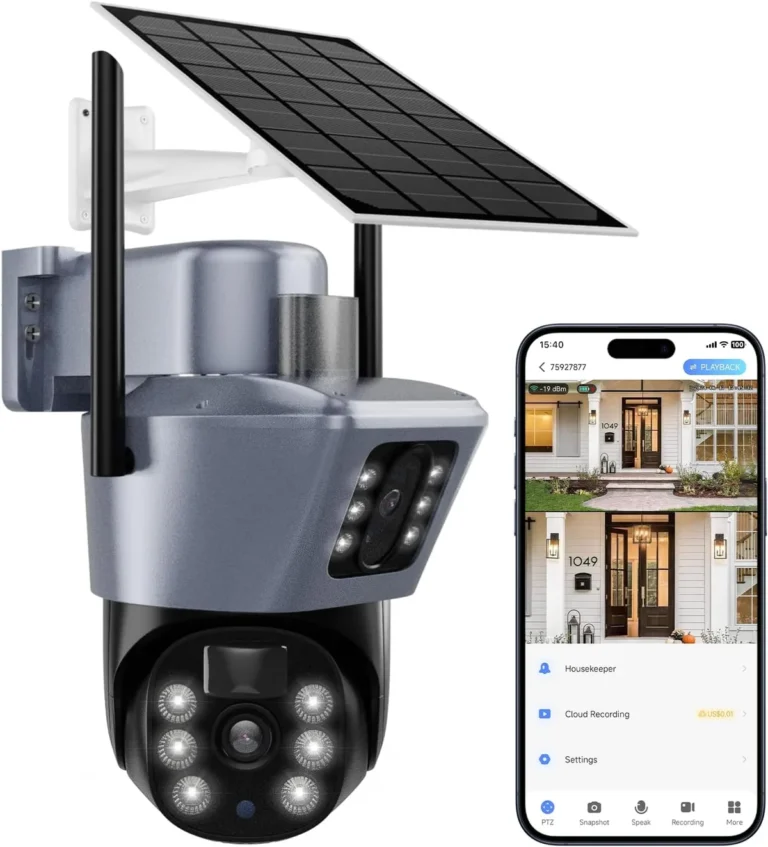
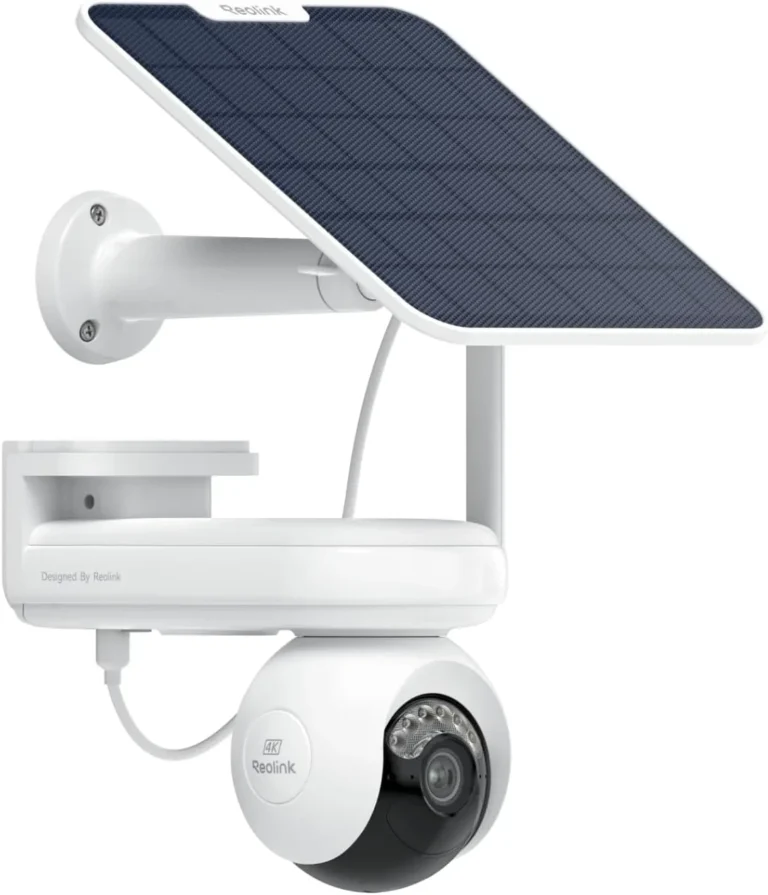
Can Solar Security Cameras Be Viewed Remotely?
Can you view solar security cameras remotely? You install a solar security camera expecting to watch live footage from your phone. Then the app fails to connect, or there's no remote viewing option at all.
Can solar security cameras be viewed remotely? Yes, but only under specific conditions.
Solar-powered cameras rely on either Wi-Fi or 4G LTE cellular data to push video to a smartphone app. Manufacturer specifications indicate that live streaming needs at least 1 to 2 Mbps for standard 1080p footage. Without that connection in place, remote viewing won't work regardless of camera quality.
Let's look at what determines whether your setup will actually deliver.
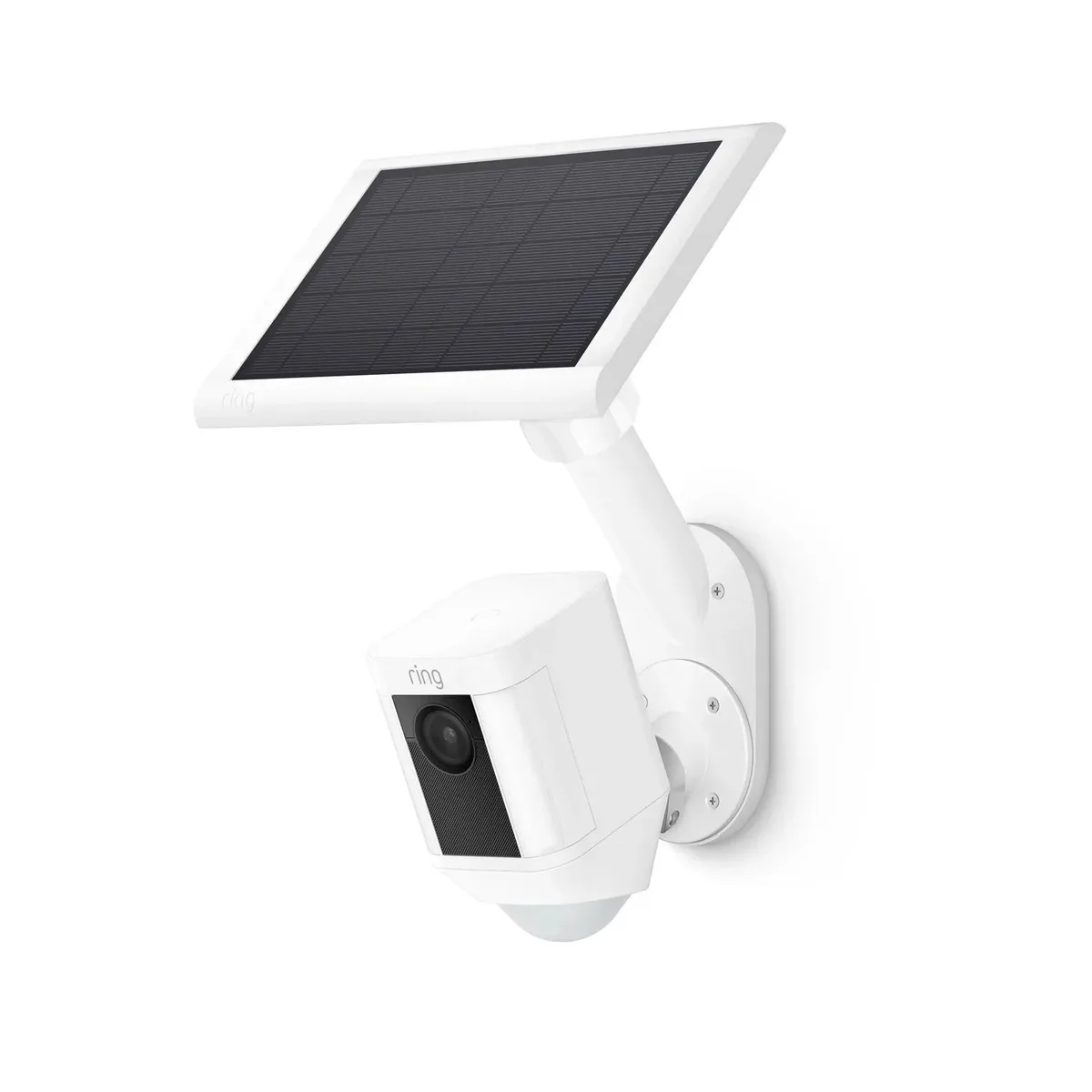
Quick Answer
Can solar security cameras be viewed remotely? Yes, if your camera has a working Wi-Fi or 4G LTE connection.
The manufacturer's smartphone app is required to stream footage to your device.
The app streams live video and stored recordings over the internet.
Without a network connection at the camera location, remote viewing is not possible.
You Bought a Solar Security Camera But Can't See a Thing
Here's the frustration most buyers hit. They mount a solar security camera on a fence post, barn, or driveway. It records fine to the onboard microSD card.
But when they open the app from their couch, nothing loads.
The problem isn't the camera itself. Local recording runs independently of any network connection. That's the trap.
People assume recording equals remote access, but those are two completely separate systems.
Common blockers keep showing up in verified user reviews across major brands:
- The camera sits outside the Wi-Fi range of the home router
- The property has no internet service at all
- The cellular signal at the camera location is too weak for video streaming
- Outdated firmware prevents the app from pairing correctly
- The router's firewall blocks the camera's port
None of these are hardware defects. They're connectivity and configuration issues. Understanding the three main remote viewing paths is the first step toward fixing any of them.
Users also sometimes forget that the app must be installed on the same account used during initial camera pairing. Switching phones without re-linking the camera will break remote viewing immediately.
Yes, It Works But Only If One Thing Is in Place
The short answer is yes. Solar security cameras absolutely can be viewed remotely. Manufacturer documentation from Reolink, Arlo, and Ring confirms that their solar-powered models support live streaming through smartphone apps.
But there's one non-negotiable requirement. The camera needs an active network connection, either Wi-Fi or 4G LTE cellular data.
Think of the solar panel as solving a completely different problem. It keeps the battery charged so the camera stays powered without wiring. That has nothing to do with connectivity.
The power source and the data connection are two separate systems working together. If either one is missing, remote viewing won't function.
Per NIST IoT cybersecurity guidelines published at nist.gov, any internet-connected camera relies on encrypted communication between the device and the app. Without a network link, there's no encrypted channel to stream through.
So the one thing that must be in place is a stable network connection. Get that sorted and everything else follows naturally.
The Three Ways Solar Cameras Reach Your Phone
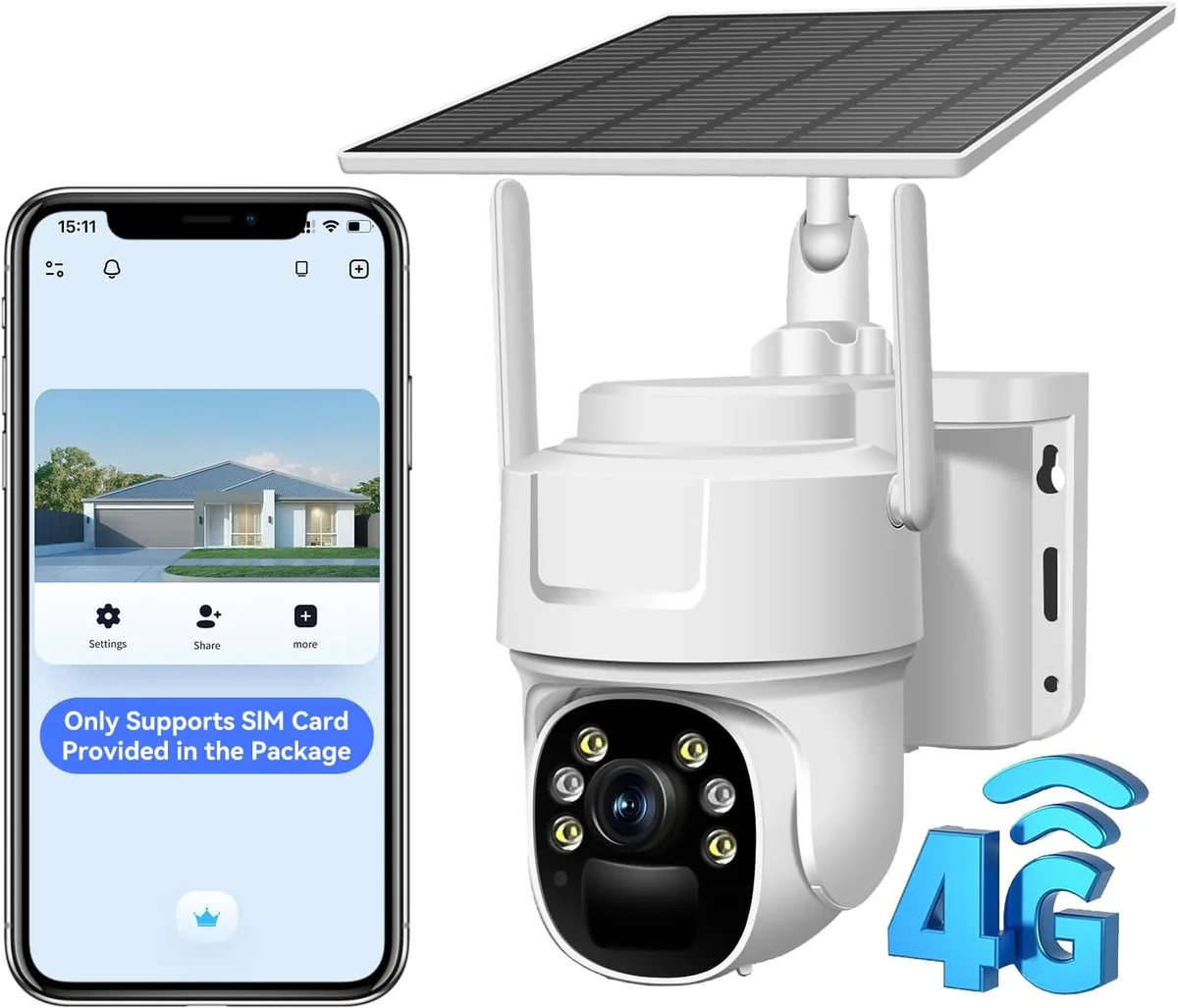
There are three ways a solar security camera connects to your phone. Each relies on a different type of network, and each comes with its own trade-offs.
| Method | Best For | Monthly Cost | Setup |
|---|---|---|---|
| Wi-Fi | Homes and apartments | $0 | Easy |
| 4G LTE cellular | Rural and off-grid properties | $5-$20 | Moderate |
| Local storage only | Properties with no internet | $0 | Simple, but no remote viewing |
Wi-Fi connection. The camera pairs with your home router, typically on the 2.4 GHz band. This works when the camera sits within about 100 feet of the router. Free and fast, but range-dependent.
4G LTE cellular. The camera uses a built-in SIM card to reach a cellular network instead of Wi-Fi. This is ideal for farms, ranches, and off-grid cabins. Per FCC guidelines on cellular-enabled devices, all LTE camera modules must meet specific transmission standards before they can be sold in the US.
Local storage only. Without any network, the camera records to a microSD card. You'd physically remove the card to review footage. This isn't remote viewing, but it's worth noting because many people think their camera is broken when it's just offline.
Which Remote Viewing Setup Fits Your Situation?
Not every property has the same connectivity situation. Here's how to figure out which method fits yours.
If you have strong Wi-Fi, choose a Wi-Fi solar camera. It's the cheapest option and requires no monthly subscription. This works for homes, apartments, garages, and any location within router range.
If your property is remote or off-grid, go with a 4G LTE cellular camera. You'll pay for a SIM card data plan, but you'll get reliable access anywhere with cellular coverage. Verified buyer reports from rural farms consistently show stable performance with data plans in the 3 to 5 GB range.
If you have no connectivity at all, local storage is your only option. The camera records to microSD and you check footage by hand. You can revisit the recordings later if you gain access to a network.
If you're not sure where you stand, test your phone's Wi-Fi signal at the camera's mounting location first. If you get fewer than two bars, Wi-Fi alone won't work reliably. Switch to a cellular model.
As of 2026, 4G LTE coverage now reaches over 99% of the US population, according to FCC data. That makes cellular remote viewing viable in far more places than many people realize.
How to Get Remote Viewing Working in 6 Steps
Once you've confirmed your connectivity option, getting remote viewing up and running takes about 15 to 30 minutes. Follow the sequence below.
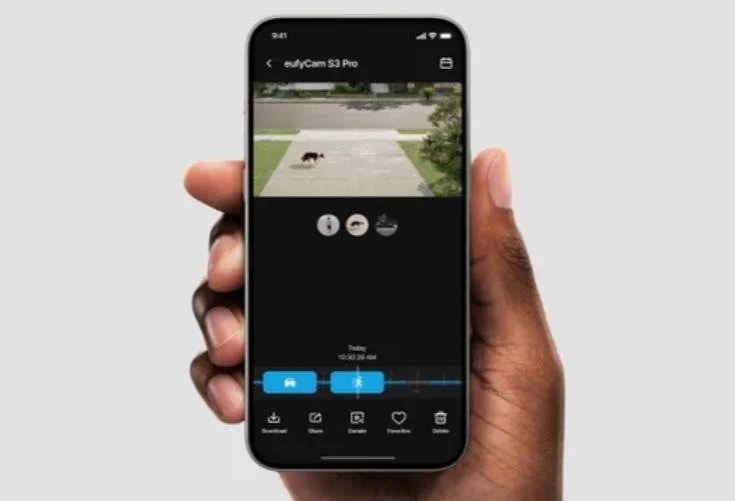
Step 1: Mount the Camera and Solar Panel
Position the camera for a clear view of the monitored area. Angle the solar panel toward the sun, facing south in the Northern Hemisphere.
Step 2: Charge the Battery
Let the battery reach at least 50% before setup. A low battery causes pairing failures.
Step 3: Install the App
Download the manufacturer's app from the App Store or Google Play. Create an account with a permanent email address.
Step 4: Pair the Camera
Most models use QR code scanning or Bluetooth pairing. Follow the in-app prompts. Reolink's support documentation recommends checking for firmware updates before pairing, since outdated firmware is the top cause of failed setups.
Step 5: Connect to Your Network
Enter your Wi-Fi credentials, or insert a SIM card and activate a cellular data plan. Confirm the connection status in the app.
Step 6: Test Remote Viewing
Close the app. Switch your phone to cellular data. Reopen the app and check if the live stream loads.
If it does, you're set.
Common Mistakes That Break Remote Viewing on Solar Cameras
Most remote viewing failures come down to a handful of repeat mistakes. Once you know what they are, they're easy to fix.
Mistake 1: Mounting the Camera Too Far From the Router
Wi-Fi signals drop sharply after about 100 feet, and obstacles make it worse. If your camera sits behind a brick wall or on a second floor, the signal degrades further. Move the camera closer or switch to a cellular model.
Mistake 2: Ignoring Firmware Updates
Old firmware can break app compatibility with new phone operating systems. Manufacturer support pages consistently list firmware as a top cause of connection failures. Check for updates every few weeks, especially after a phone OS update.
Mistake 3: Confusing the 2.4 GHz and 5 GHz Bands
Most solar security cameras connect on the 2.4 GHz band because it reaches farther. Many modern routers broadcast two separate networks. If your phone is on 5 GHz, it won't find the camera during pairing.
Switch your phone to the 2.4 GHz network first.
Mistake 4: Setting the Solar Panel Wrong
A shaded or poorly angled solar panel drains the battery faster than it charges. Without sufficient battery, the camera can't maintain a stable Wi-Fi or cellular connection. In our research, cameras with panels angled 30 to 45 degrees south perform significantly better in the Northern Hemisphere.
Mistake 5: Testing Only on Wi-Fi
Many people confirm remote viewing on their home Wi-Fi, then assume it works everywhere. It doesn't. Always test with your phone on cellular data to verify the camera is truly accessible remotely.
That's the real test that matters.
Costs, Storage Limits, and Legal Rules You Should Know
Remote viewing has costs that people don't always anticipate. Understanding them upfront saves headaches later.
Subscription Plans
Many brands offer a free tier with limited cloud storage, usually 24 to 30 days of motion-triggered clips. A paid plan runs about $3 to $10 per month for a single camera. Plans with 60-day cloud storage and advanced AI features can reach $15 to $20 per month.
Some users prefer avoiding subscriptions entirely. Local microSD storage eliminates monthly fees, but you lose remote access to stored clips when you're away from home.
Cellular Data Costs
A 4G LTE solar camera typically consumes 1 to 3 GB of data per month. That's manageable on most plans. Heavy continuous streaming or multiple cameras can push usage to 10 GB or more.
Check your carrier's plan before committing.
Storage Card Capacity
| Storage Size | Motion-Triggered Clips | Approximate Cost |
|---|---|---|
| 64 GB | 1-2 weeks | $10-$15 |
| 128 GB | 2-4 weeks | $20-$30 |
| 256 GB | 1-2 months | $40-$55 |
Legal and Privacy Considerations
Video and audio recording laws vary by state. One-party consent states allow recording audio as long as one person in the conversation knows it's happening. Two-party consent states require everyone to agree.
Always check your local regulations before enabling two-way audio.
If your camera captures a neighbor's property or a public sidewalk, you may face complaints. Position your camera to focus on your own property boundaries. Some HOAs also restrict visible external cameras on shared property.
Frequently Asked Questions
Do solar security cameras work without Wi-Fi?
Yes, some solar security cameras use 4G LTE cellular connectivity instead of Wi-Fi. These models need a SIM card and a data plan. If neither Wi-Fi nor cellular is available, the camera can only record to local microSD storage with no remote viewing capability.
How much internet speed do I need for remote viewing?
For standard 1080p live streaming, you need about 1 to 2 Mbps of upload bandwidth at the camera location. For 2K or 4K footage, plan for 5 to 8 Mbps. Most home broadband connections handle this easily, but cellular plans can vary in quality.
Can I view solar security cameras from outside my home network?
Yes. That's the entire point of remote viewing. As long as your phone has an internet connection, you can access the camera's live feed from work, a coffee shop, or while traveling abroad.
The camera's network and your phone's network just need to be independent.
Do I need a cloud subscription to view live footage remotely?
No. Live streaming to your smartphone app typically works without a paid subscription on most major brands. Cloud storage subscriptions are separate and mainly cover stored video recordings.
Free live view is standard across most solar security camera models.
What happens if the solar panel stops charging the battery?
The camera will keep running until the battery depletes, usually 3 to 7 days without solar input depending on activity level. Once the battery dies, remote viewing stops completely until charging resumes. Regularly check your app for battery status alerts.
Can multiple people view the same solar security camera remotely?
Yes, most apps support multiple user accounts on the same camera. You can share access with family members or a property manager. Account sharing limits vary by brand, but two to five users is common across major platforms.