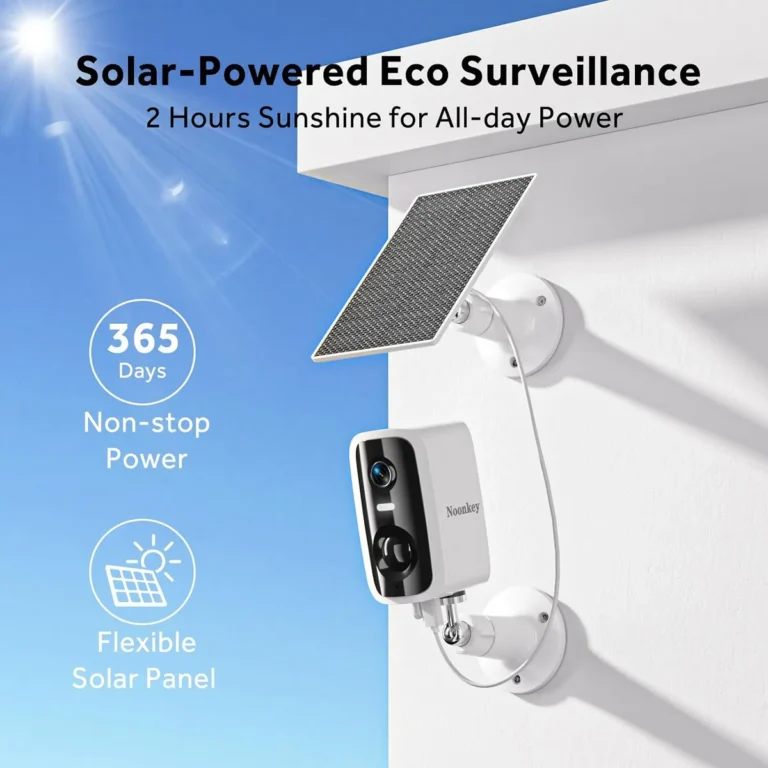
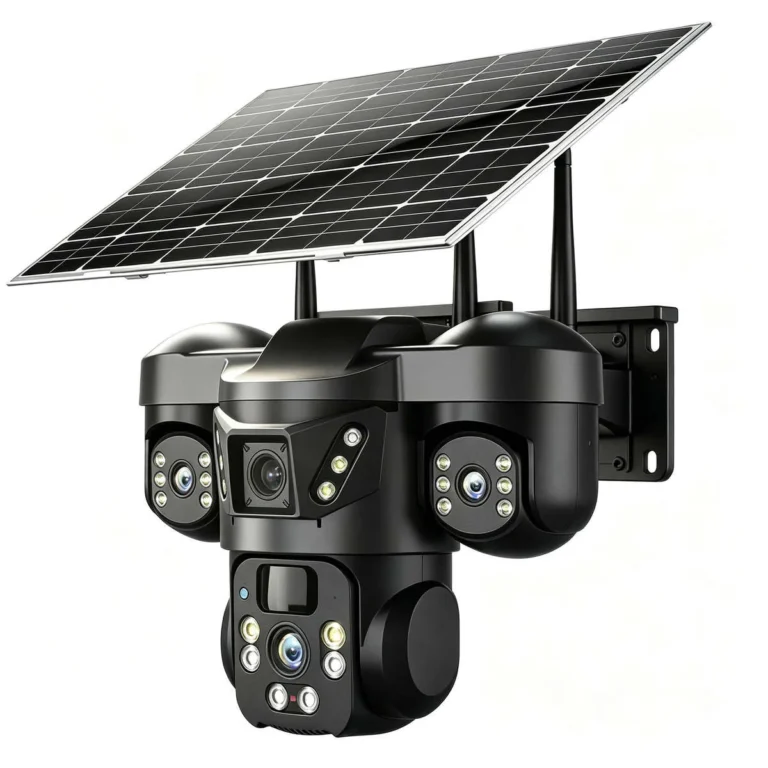
Can Solar Security Cameras Send Phone Notifications?
Can solar security cameras send phone notifications? Yes, most modern solar cameras push motion alerts to your phone through a dedicated app. But whether those alerts arrive reliably depends on your connectivity.
Wi-Fi signal, cellular coverage, and battery levels all play a role.
Manufacturer specifications as of 2026 confirm that solar cameras from Reolink, Arlo, and Eufy support push notifications through their apps. The FCC certifies these devices for use on 4G LTE networks and Wi-Fi. What trips most buyers is the camera's deep sleep mode.
It conserves battery but can delay or block alerts entirely.
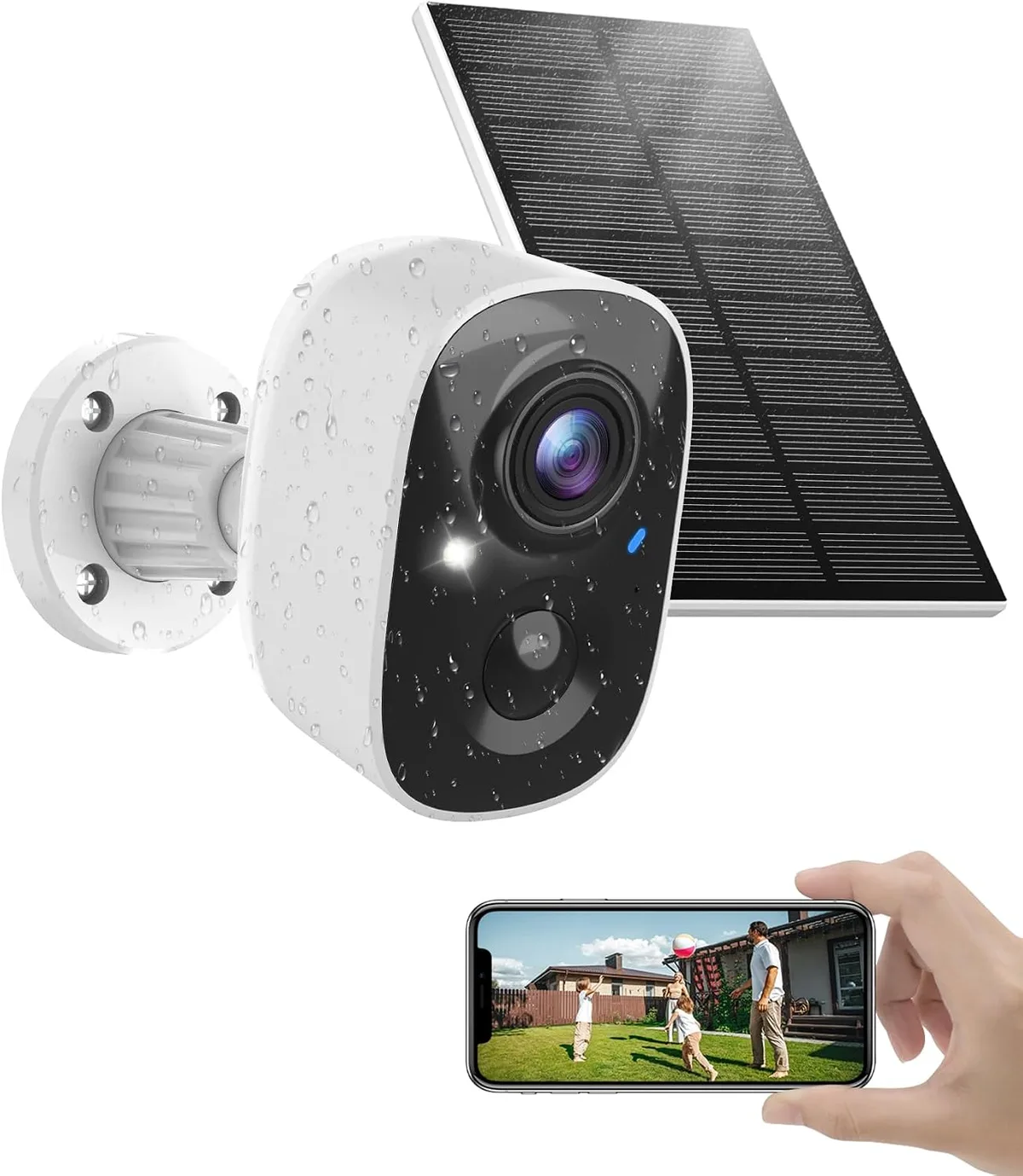
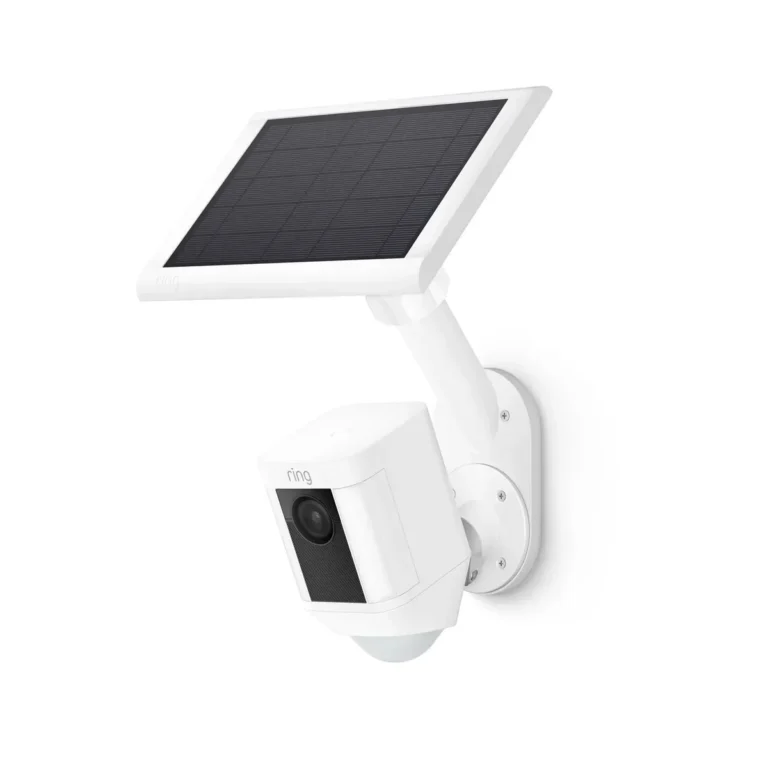
Image source: Web (Bing) / amazon.ca (Web image (fair-use with source credit))
Quick Answer
Can solar security cameras send phone notifications? Yes, they can. Most solar cameras push motion alerts to your phone through an app.
Alerts fire when the camera detects movement, like a person or vehicle. Connectivity is the one requirement that can't be skipped.
The catch is what connects your camera to the internet. That might be Wi-Fi, a 4G LTE cellular plan, or a hub-based system with its own network link. Without at least one of these, you'll never get a notification.
Here are the factors that determine whether notifications work:
- Wi-Fi signal strength at the camera's installation point
- Cellular signal bars for 4G LTE solar cameras
- Battery charge level (a depleted camera can't send anything)
- Solar panel performance and available daylight
- App notification settings properly configured
- Motion detection zones set to avoid false triggers
One important distinction matters here. "The camera supports notifications" and "notifications actually reach your phone" are two different things. Deep sleep mode is the biggest culprit.
Solar cameras power down to conserve battery. When they wake up, they can miss events entirely.
Manufacturer specs typically list notification delivery times of 2 to 15 seconds after a detection event. That's fast enough for most situations. But if your camera is deep in sleep, the alert never fires in the first place.
Also check what notification types the camera offers. Some apps send push notifications only. Others add email or SMS options.
SMS alerts can reach you even when the app is closed. Push notifications depend on the app running in the background on your phone.
Subscription costs matter too. Many solar cameras offer cloud storage and remote access through a paid plan, starting around $3 to $5 per month. Without a subscription, you might still get motion alerts.
But recorded footage may stay only on a microSD card.
Test the full notification path after setup. Trigger motion detection yourself. Confirm the alert lands on your phone.
Do it at different times of day, especially during overcast weather.
How Solar Security Cameras Actually Send Phone Notifications
Understanding the notification chain helps you figure out why alerts sometimes fail. It all starts with the solar panel and ends with the buzz on your phone.
Here's the full chain:
- Solar panel converts sunlight into electrical energy
- Battery stores that energy for later use
- Camera hardware processes motion detection and records footage
- Network connection (Wi-Fi or cellular) sends event data to the app servers
- Vendor app receives the trigger and pushes an alert
- Your phone receives the notification through push, email, or SMS
Each link in that chain can fail. If the battery is too low, the camera shuts down before it can send anything. If the network connection drops, the alert never reaches the app servers.
If your phone has Do Not Disturb mode on, the notification arrives silently.
Deep sleep mode deserves special attention. Most solar cameras enter a low-power state when no event is detected. They wake up only when the PIR (Passive Infrared) sensor detects motion.
PIR sensors detect heat changes, like a person walking by, rather than just pixel changes on screen. Some models take 1 to 3 seconds to fully wake and begin processing. During that window, quick events can slip through undetected.
The National Institute of Standards and Technology publishes guidelines on IoT device security worth reviewing when choosing a solar camera. Devices that update firmware regularly tend to handle connectivity more reliably. Look for firmware update support before you buy.
Notification types vary by vendor and how fast they reach you:
| Type | Speed | Reliability |
|---|---|---|
| Push notification | 2 to 15 seconds | High when app is active |
| Email alert | 30 seconds to 2 minutes | Medium |
| SMS alert | 15 to 60 seconds | High |
For most users, push notifications are the default and fastest option. Email and SMS serve as backups if your phone blocks app alerts or if you're checking a shared device.
The Decision Tree: What Determines If Notifications Reach Your Phone
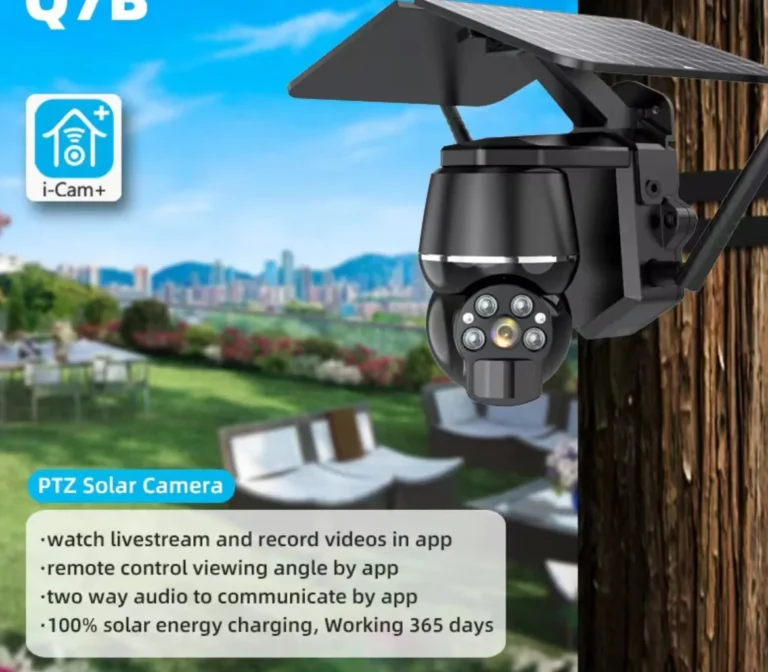
Image source: Web (Bing) / zoomon.camera (Web image (fair-use with source credit))
The answer to whether your solar camera sends phone notifications isn't the same for everyone. It depends entirely on your situation. Here's how to follow the right branch.
If you have Wi-Fi at the camera location
Most Wi-Fi solar cameras connect directly to your home router. If your signal at the camera's spot measures above 3 bars, roughly -60 dBm or stronger, notifications will work. Below that, you'll see delays, dropped connections, or missed alerts entirely.
Test your signal strength before installation. Walk to the camera's location with your phone. Check how many bars of Wi-Fi you get.
If it's weak, consider a Wi-Fi extender or mesh system to extend coverage.
If you don't have Wi-Fi but you have cellular coverage
A 4G LTE solar camera with a SIM card can send notifications without any home internet. You'll need a cellular data plan, typically 500MB to 2GB per month depending on your recording settings. This is the most common setup for remote properties, construction sites, and ranches.
Check the FCC database to confirm your camera model is certified for the cellular bands your carrier uses. This avoids compatibility headaches later.
If you're completely off-grid with no connectivity
Without Wi-Fi or cellular coverage, your solar camera can't send real-time phone notifications. A hub-based system like Reolink's Base Station can help if it has its own cellular backhaul. Otherwise, you're limited to local microSD card storage.
You'll need to physically visit the camera to retrieve footage.
If you use a hub or base station
Hub-dependent solar cameras route their notifications through a base station that connects to your Wi-Fi. The advantage is extended range. The disadvantage is you need that hub powered and online at all times.
If the hub loses power or internet, your whole camera network goes silent.
| Situation | Notification Method | Works Without Wi-Fi? |
|---|---|---|
| Wi-Fi available at camera | Direct push via app | Not applicable |
| Cellular coverage only | 4G LTE push via app | Yes, with data plan |
| Off-grid, no connectivity | No real-time alerts | No |
| Hub-based system | Push via base station | Depends on hub connection |
Setting Up Solar Camera Notifications Step-by-Step
Most notification problems trace back to setup mistakes. Follow this process to get alerts working right the first time.
Step 1: Test connectivity before you mount anything
Walk to your planned camera location. Check your Wi-Fi signal or cellular coverage on your phone. If the signal is weak, pick a different spot.
This saves you from remounting everything later.
Step 2: Mount the solar panel first
Position the panel where it gets at least 5 to 6 hours of direct sunlight daily. Angle it to face south in the Northern Hemisphere for maximum exposure. A clean panel charges faster than a dirty one.
Step 3: Mount the camera and connect it
Attach the camera and run the cable to the solar panel. Power on the camera. Connect it to your Wi-Fi network or insert a 4G SIM card if it's a cellular model.
Step 4: Install the vendor app and add your camera
Download the official app from the App Store or Google Play Store. Create an account. Add the camera by scanning its QR code or entering the device ID.
Step 5: Enable and configure notifications
Go to the app's notification settings. Turn on push notifications. Set motion detection zones to cover the areas you care about.
Adjust sensitivity to avoid false alerts from trees or passing cars.
Step 6: Test and monitor
Walk in front of the camera to trigger detection. Check that the notification arrives on your phone within 5 to 15 seconds. Repeat this test during different times of day and in various weather conditions.
Keep an eye on the app's battery and solar panel status. If the battery drains faster than expected, your panel may need repositioning or cleaning.
Wi-Fi Solar Cameras vs. 4G Cellular Solar Cameras: Which Sends Notifications Better?
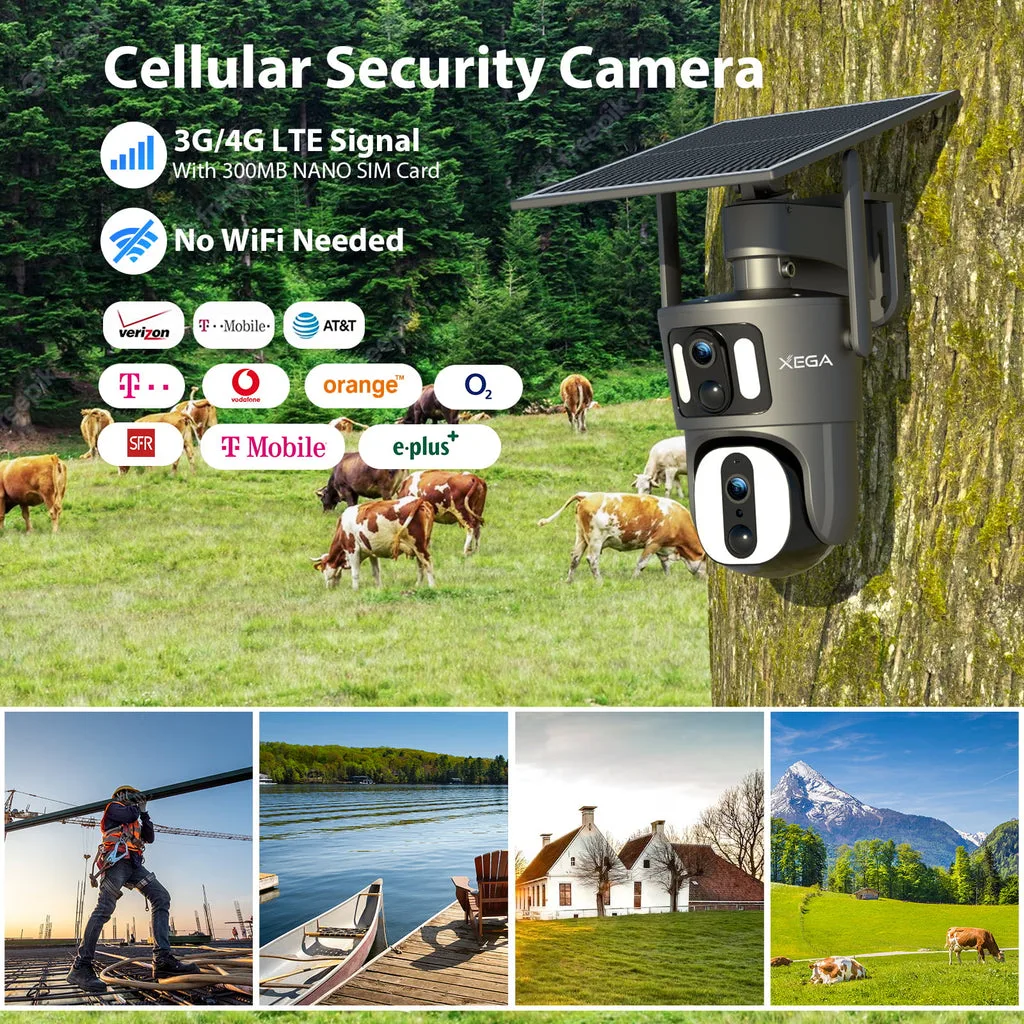
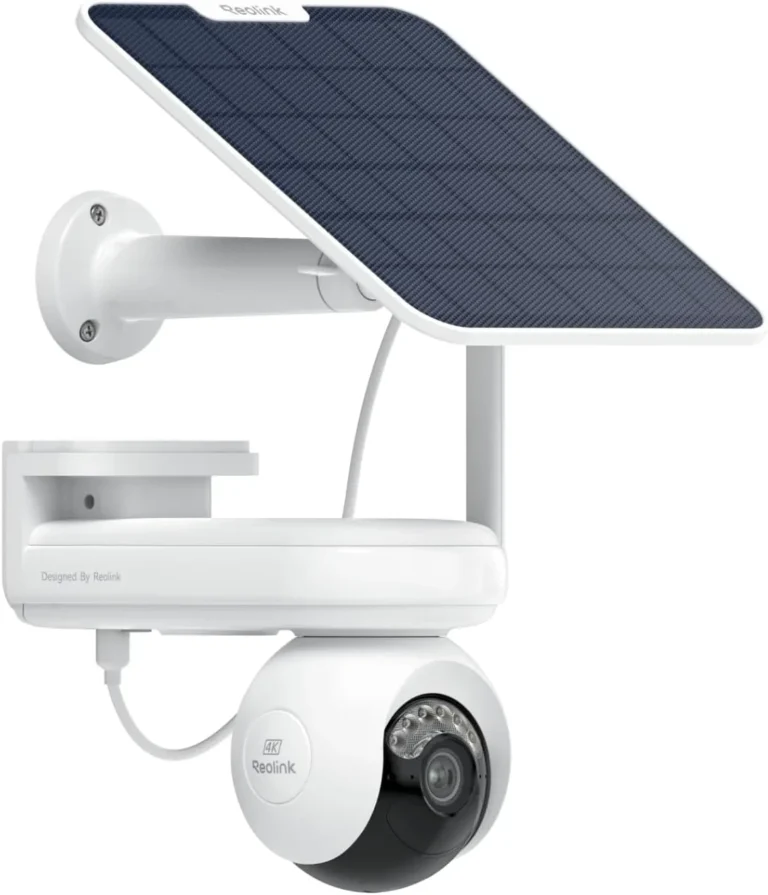
Image source: Bing (Web (fair-use with source credit))
Both types send phone notifications. The difference is reliability and the conditions each one needs to perform well.
Here's how they compare:
| Feature | Wi-Fi Solar Camera | 4G LTE Solar Camera |
|---|---|---|
| Notification speed | 2 to 15 seconds | 3 to 20 seconds |
| Works without home internet | No | Yes |
| Monthly cost | Wi-Fi only (free) | Data plan ($5 to $20/month) |
| Setup complexity | Simple | Moderate (SIM card needed) |
| Best location | Urban and suburban homes | Remote, rural, off-grid |
| Range limitation | About 150 feet from router | Limited by carrier coverage |
| Deep sleep impact | Same for both | Same for both |
Wi-Fi solar cameras are best for
- Homes with strong Wi-Fi coverage outdoors
- Users who want zero monthly costs
- Quick setup with no SIM card needed
- Properties within reasonable distance of the router
4G LTE solar cameras are best for
- Properties without any Wi-Fi signal
- Construction sites, farms, and ranches
- Anyone who needs notifications without home internet
- Rentals where installing Wi-Fi isn't possible
Both types share the same deep sleep mode limitation. Manufacturer specifications from Reolink and Arlo list power-saving modes that can delay notifications by 5 to 30 seconds during low-activity periods. This isn't unique to solar cameras.
Any battery-powered camera does this to extend runtime.
Buyers who need guaranteed, fast notifications should look for a "continuous recording" toggle in the app. Event-only mode wakes the camera only on motion. Continuous mode keeps it online, which costs more battery but delivers alerts faster.
The FCC publishes the complete list of certified cellular devices on its official website. If you're buying a 4G solar camera, check that your model is certified for your carrier's network bands before purchase. This one step prevents a frustrating surprise after installation.
Common Mistakes That Break Solar Camera Notifications
Even well-designed solar cameras fail at notifications when certain mistakes are made. Here are the most common ones.
Wrong solar panel orientation. If the panel faces a wall, sits under a tree, or is angled wrong, it won't charge properly. A starved battery drains quickly, and the camera drops offline. Angle your panel toward direct sunlight and clean it monthly.
Leaving notification settings at default. Out of the box, many cameras have motion detection zones set to cover the entire frame. This triggers alerts for every passing car and shadow. Set specific zones around your doors, driveway, and yard.
Camera placed too far from the Wi-Fi router. Signal drops off steeply after about 100 feet, especially through walls. Use a Wi-Fi extender or pick a camera spot closer to your router. The app usually shows signal strength during setup.
Ignoring cellular signal strength before buying. A 4G camera in an area with 1 bar of coverage will send unreliable alerts. Use your phone to check signal bars at the installation site first. No bars means no notifications.
Too many alerts leading to silenced notifications. When your phone buzzes constantly, you'll turn off alerts out of frustration. This defeats the entire purpose. Set motion zones wisely and reduce sensitivity to keep only important notifications.
Firmware never updated. Outdated firmware is a common cause of dropped connections and missed alerts. Check for updates in the app every few months. Most vendors release fixes for notification reliability on a regular basis.
Frequently Asked Questions
Do solar security cameras work without Wi-Fi?
Yes, if they use a 4G LTE cellular connection instead. Cellular solar cameras send notifications through a SIM card and a data plan, no home Wi-Fi required. Wi-Fi solar cameras need a router within range to push alerts to your phone.
Do solar cameras need a subscription to send notifications?
No, most cameras send push notifications for free through their apps. A subscription typically unlocks cloud storage and remote live viewing. Without one, footage stays on a microSD card, and you'll need to access it directly.
Why is my solar camera notification delayed?
The most common reason is deep sleep mode. Solar cameras power down to conserve battery and wake only when motion is detected. Signal issues, weak Wi-Fi, or low battery can also cause delays.
Check your app's battery and signal status first.
Can solar security cameras send alerts in winter?
They can, but expect slower charging. Shorter days and lower sun angles reduce solar panel output. Battery capacity also drops in cold temperatures.
Choose a camera with a larger battery and LiFePO4 cells for better cold-weather performance.
Do I need a hub for a solar camera to send phone alerts?
Not always. Standalone solar cameras connect directly to Wi-Fi or cellular networks without a hub. Hub-based systems add range and multi-camera support but require the hub to stay powered and connected to the internet at all times.
Final Decision Guide: Choosing the Right Solar Camera for Notifications
Your situation determines the right camera. Use this quick reference to decide:
| Your Situation | Recommended Camera Type | Key Feature to Prioritize |
|---|---|---|
| Strong Wi-Fi outdoors | Wi-Fi solar camera | Signal strength at camera location |
| No Wi-Fi, cellular coverage available | 4G LTE solar camera | Carrier-compatible LTE bands |
| Completely off-grid | Hub-based system with cellular backhaul | Hub power and connectivity |
| High-alert area needing fast response | Any type with continuous recording mode | Low-latency push notifications |
Before you buy, run three quick checks:
- Signal test. Walk to the installation spot with your phone. Confirm you have at least 3 bars of Wi-Fi or cellular signal.
- Sunlight check. Watch the spot over a full day. If it gets less than 4 hours of direct sun, the solar panel won't keep up.
- Cost check. Factor in cellular data plans ($5 to $20/month) or cloud subscriptions ($3 to $5/month). These recurring costs add up over time.
For most homeowners, a Wi-Fi solar camera with a strong outdoor signal delivers reliable notifications at the lowest cost. Remote property owners and anyone without Wi-Fi should go 4G LTE. Off-grid users need a hub-based system with its own connectivity path.
The key takeaway is simple. Solar security cameras absolutely can send phone notifications. The question is whether your connectivity setup supports it.
Test your signal, position your solar panel correctly, and configure your notification zones before you rely on alerts.